Claude Code · Gemini · ChatGPT · Kimi — one desktop shell

The desktop shell for driving your agent,
not fighting your editor.

Explorer, a read-only code viewer, a live console, and four AI sessions running at once — laid out the way you already work. No code editor in the middle, on purpose.

In private development See the layout ↓
Windows · built on Electron · unofficial, independent tool
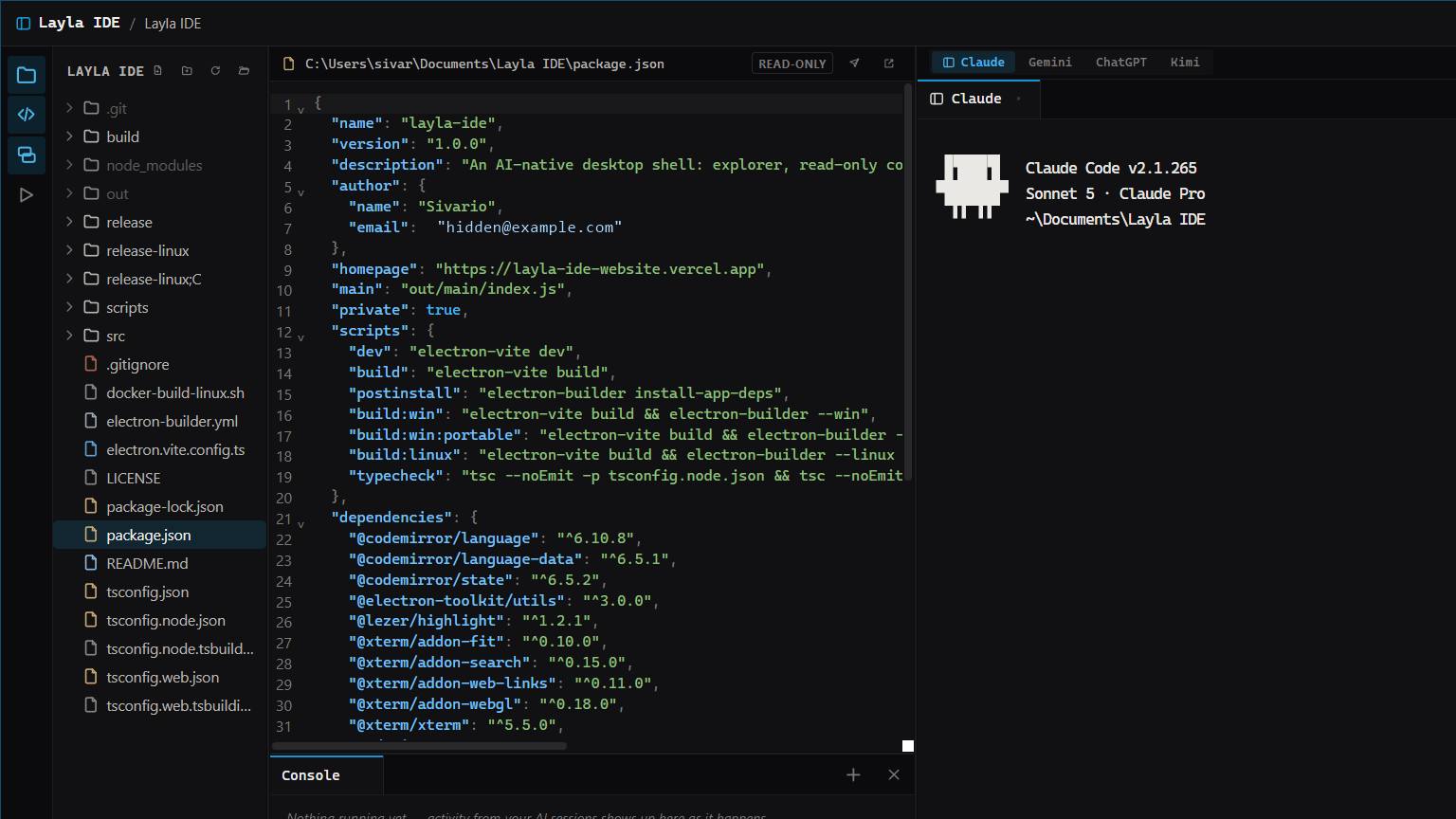
Layla IDE main window: file explorer with git status on the left, a read-only syntax-highlighted code viewer in the center, a console panel at the bottom, and an AI panel on the right showing an active Claude Code session with tabs for Gemini, ChatGPT, and Kimi.
Layout

Four panels. Nothing you don't need.

Every panel resizes, collapses, and slides back open smoothly — and stays alive while it's hidden, so switching around never costs you your place.

Left — Explorer A live, watched file tree with git status underneath it — branch, ahead/behind, per-file +/- change stats.
Center — Code viewer Click a file for real syntax highlighting. Images render inline, .html files get a live sandboxed preview. Read-only — always.
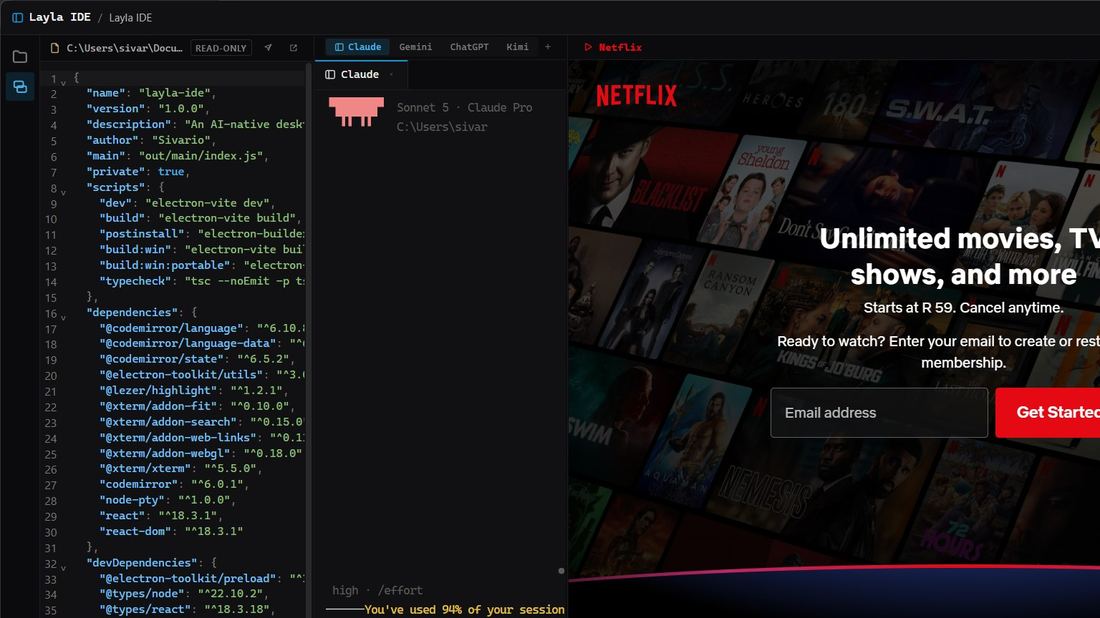
Right — AI panel Claude Code sessions — tabbed, renameable, splittable — toggling to Gemini, ChatGPT, or Kimi without losing either one.
Bottom — Console A live activity feed parsed straight out of your Claude session's own output — tool calls, searches, edits, shell runs — plus a tab strip for plain shell sessions.
Claude Code
Gemini
ChatGPT
Kimi
+ Netflix, because why not
Features

Built around the agent, not the editor

Nobody hand-edits code next to an agent that writes it for you. Everything here is what you actually reach for instead.

Real terminals, not emulations

Spawns actual PowerShell with claude launched inside via node-pty, rendered with xterm.js + WebGL. Full color, scrollback, clickable links — it's the CLI, not a chatbox pretending to be one.

See what changed, instantly

Images render inline. HTML files get a live, sandboxed preview with source view a click away. No "open in editor to actually see it" round trip.

Four AI providers, one toggle

Claude, Gemini, ChatGPT, and Kimi each keep their own logged-in session alive in the background. Switch instantly — nothing reloads, nothing forgets where you were.

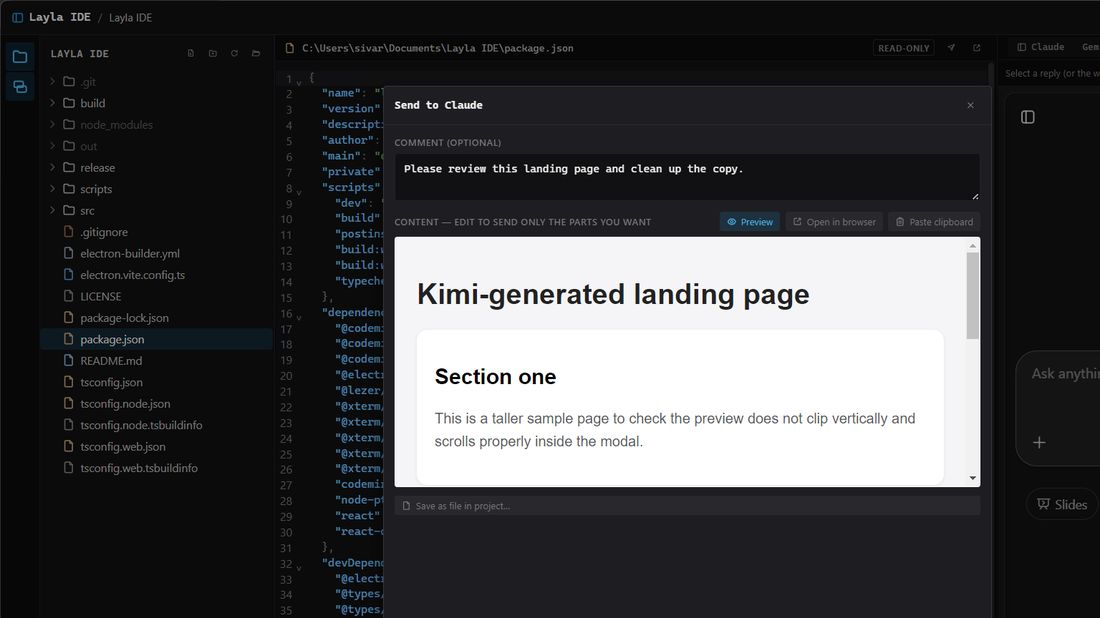
Send to Claude, on your terms

Trim what you copied down to the parts that matter, add your own comment on top, preview it if it's HTML — then send. Or save it as a real file in your project first.

A file panel that stays out of the way

Live-watched tree, create/rename/delete, reveal in Explorer, git status baked in underneath — everything you'd tab out for, without tabbing out.

Command palette, quick open

Ctrl+Shift+P for every action, Ctrl+Shift+O for every file. Split sessions with Ctrl+\. Built for keyboard-first work.

The bridge

Research anywhere. Ship through Claude.

Ask Gemini, ChatGPT, or Kimi something without ever leaving the app — then get it to Claude exactly the way you want, not as a raw wall of pasted text.

  • 1 Copy a reply, or the whole chatSelect what you want from the AI panel above — one message or the entire conversation.
  • 2 Trim it and add your own noteEdit the content down to just the useful parts. Add context Claude wouldn't otherwise have.
  • 3 Preview it, or save it as a real fileHTML gets a live sandboxed preview. "Save as file in project" writes it straight into your open folder.
  • 4 Switch back — Claude's already on itSent messages submit immediately. No copy-paste relay race.
The Send to Claude compose window: a comment field, an editable content box with a live HTML preview of a generated landing page, and Preview / Open in browser / Paste clipboard actions.
“Nobody hand-edits code next to an agent that writes it for you.”
— why there's no code editor in the middle pane

Built for people who live in the terminal.

Layla IDE is currently in private development. This page exists to show the shape of it before it ships.

In private development